SMS Terms
Backup Contact text messages
Effective date: December 9, 2025 · Last updated: September 14, 2026
Alora Wake can text one trusted person if you sleep through your alarm. We call that person your Backup Contact. This page explains what those texts say, how often they arrive, how to stop them, and how we collect consent before the first one is sent. It is written for the people who receive the texts, the people who set them up, and the carriers who review messaging programs.
What Backup Contact texts are
Backup Contact texts are sent through Twilio from a United States phone number, and only two kinds exist:
- A one-time first text when someone adds you as their backup. It confirms the enrollment or, if they chose to, introduces the feature in their own words.
- An alert, sent only if the person who added you doesn’t dismiss their alarm within the snooze limit and grace period they set.
Every text is triggered by an event, never by a schedule. We never send marketing, promotions, or reminders, and we never text anyone who hasn’t been added by an Alora Wake user.
How consent works
The person who receives these texts isn’t the person using the app, so consent is collected from both sides.
The Alora Wake user
Before any text is sent, the user chooses a contact and confirms, with a required checkbox, that they have that person’s permission to receive emergency-only texts on their behalf. The confirm button stays inactive until the box is checked.
The Backup Contact
The first text you receive explains why you’re getting it and how to opt out. Reply STOP at any time and no further texts are sent. If you don’t reply STOP, you’ll receive alerts only when the person who added you misses an alarm.
This two-party model fits the use case because the texts are emergency-only, you can opt out the moment the first one arrives, nothing promotional is ever sent, and the volume is minimal and strictly event-driven.
The messages
[Name] and [Time] are placeholders. Real texts use the name the user entered and, where included, the alarm time.
Confirmation, sent once when you’re added
Alert, sent only if an alarm goes unanswered
The person who added you can choose a friendlier, more formal, or more urgent wording, or write their own, and can include their approximate location. Every alert ends with “Reply STOP to opt out.”
If you reply HELP
If you reply STOP
How often you’ll hear from us
- One first text per contact added, one time only.
- An alert only when an alarm goes unanswered. If the person who added you wakes up on time, nothing is sent.
- Nothing recurring, nothing scheduled, nothing promotional.
How to stop, or get help
- Reply STOP to any text and we’ll stop right away. You’ll get one final text confirming you’re unsubscribed.
- Reply START if you change your mind and want alerts again.
- Reply HELP for a short text with our support email.
- Email support@alorawake.com any time.
STOP, START, and HELP are handled automatically by Twilio, our messaging provider. Message and data rates may apply, depending on your carrier plan.
Your privacy
We store a Backup Contact’s phone number only to send these texts. It is used solely for this purpose, is not shared with any other service, and is never sold. Our Privacy Policy has the full picture.
Consent flow evidence for carrier review
Carriers and The Campaign Registry ask to see how consent is collected before an application-to-person (A2P) 10DLC campaign is approved. The screenshots below are from the Alora Wake iOS app and show the exact path a user takes. This page is public so reviewers can verify it at any time.
1. Turning on Notify My Backup
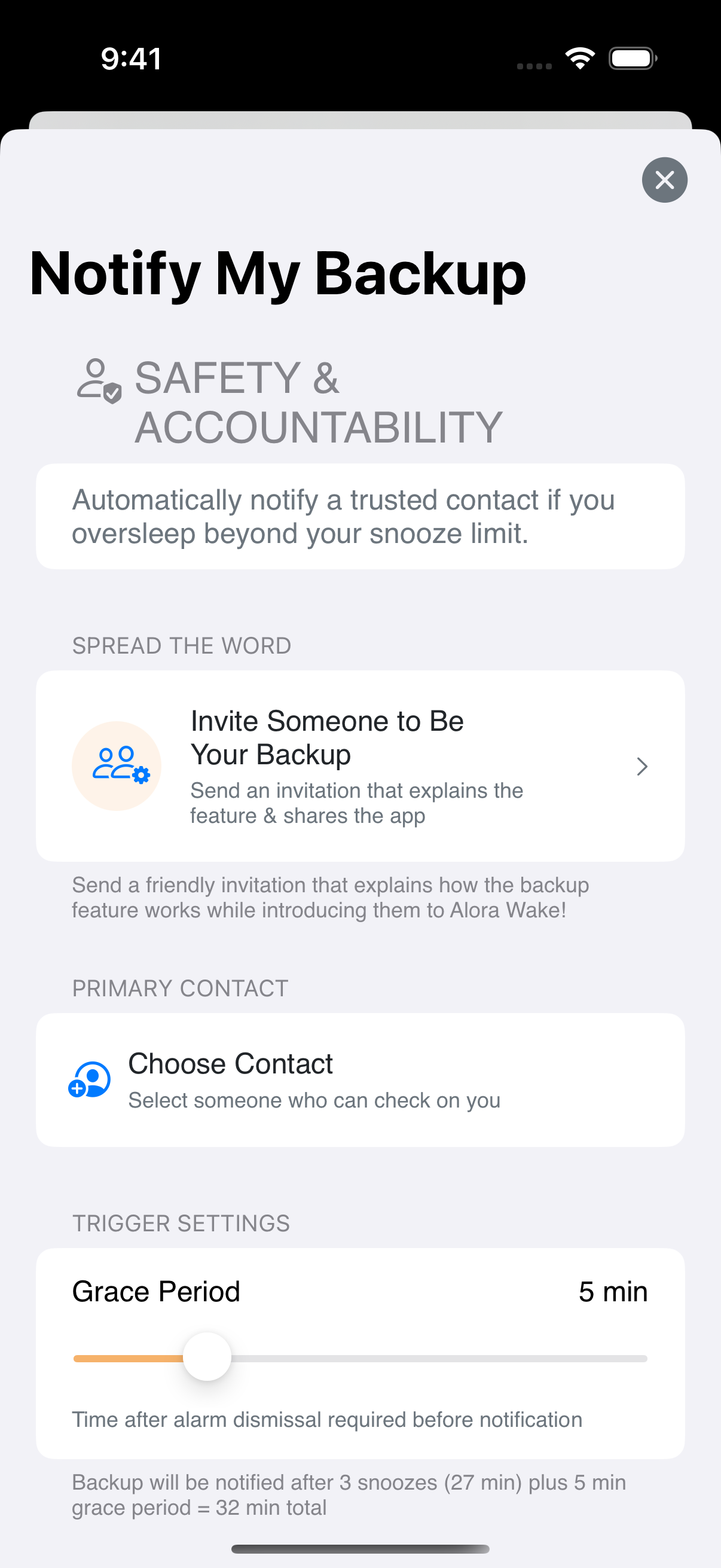
- The feature is off until the user turns it on. Nothing is ever sent automatically.
- It lives under Settings, then Notify My Backup.
- The snooze limit and grace period set here decide when an alert goes out.
2. Choosing a contact
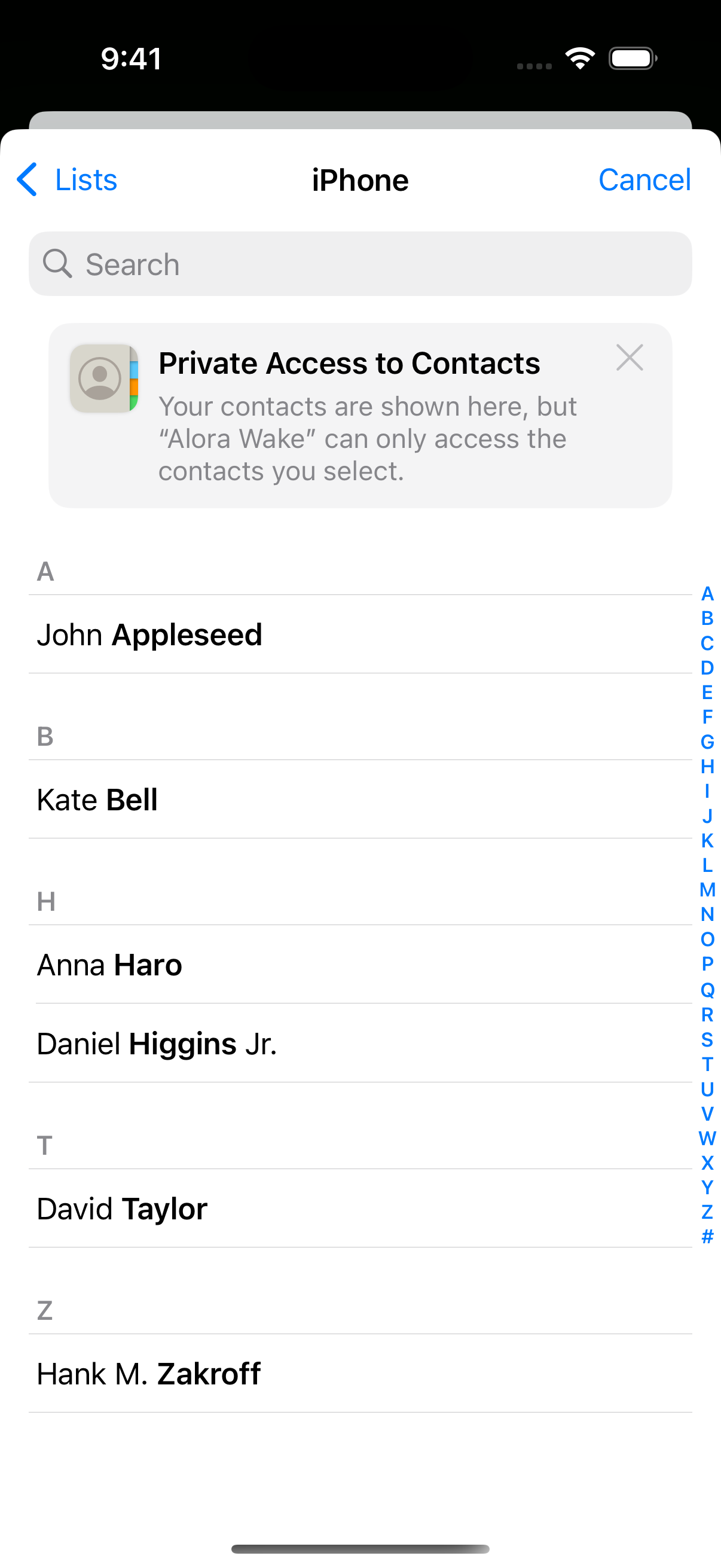
- The user picks one person from their own iOS Contacts.
- Nothing can be sent until a contact is explicitly chosen.
- iOS shares only the selected contact with Alora Wake, not the whole address book.
3. Consent screen, before consent
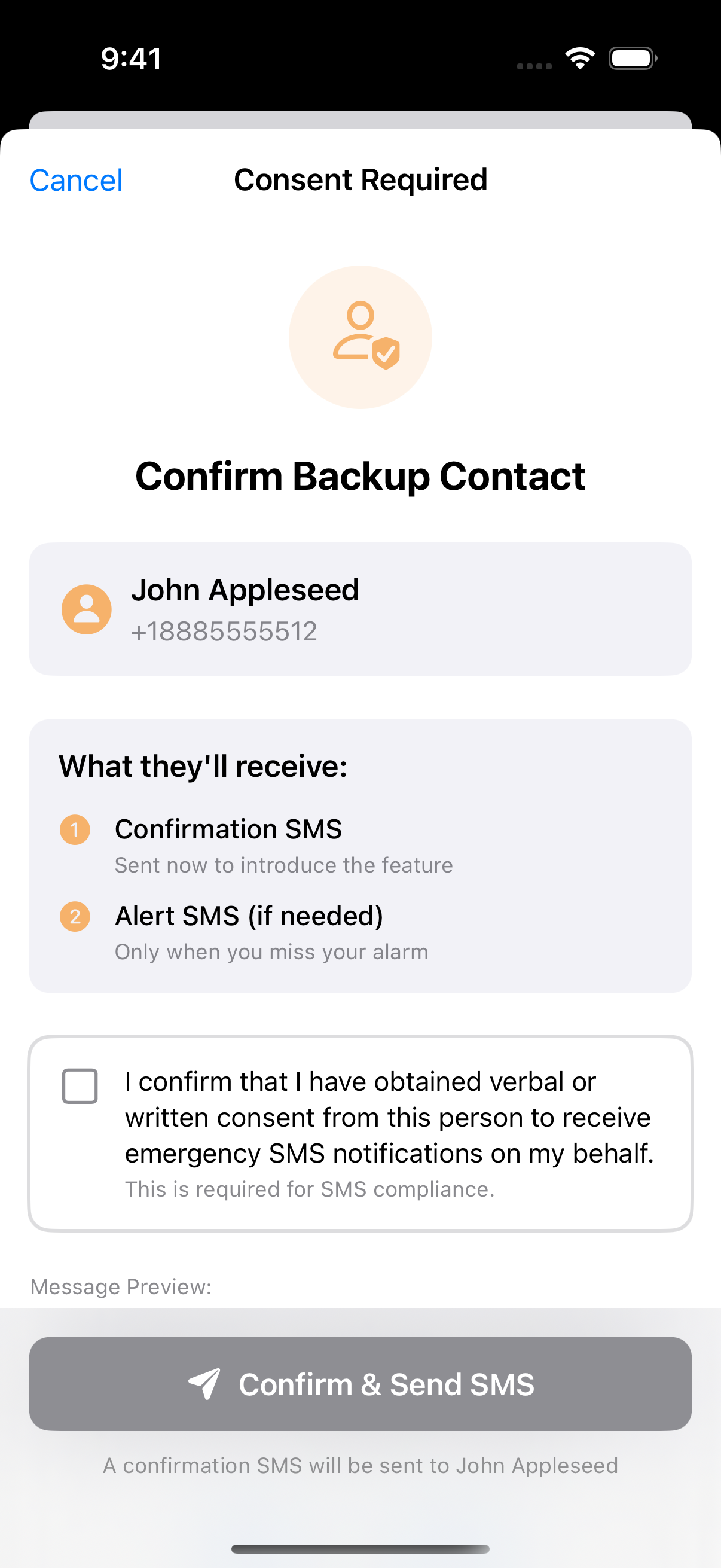
- Shows the contact’s name and phone number for verification.
- Lists the two texts the contact will receive.
- The required consent checkbox is unchecked, and the Confirm & Send SMS button is inactive and cannot be tapped.
- Links to these SMS Terms and the Privacy Policy are on the screen.
Nothing is sent until the user checks the consent box.
4. Consent screen, after consent
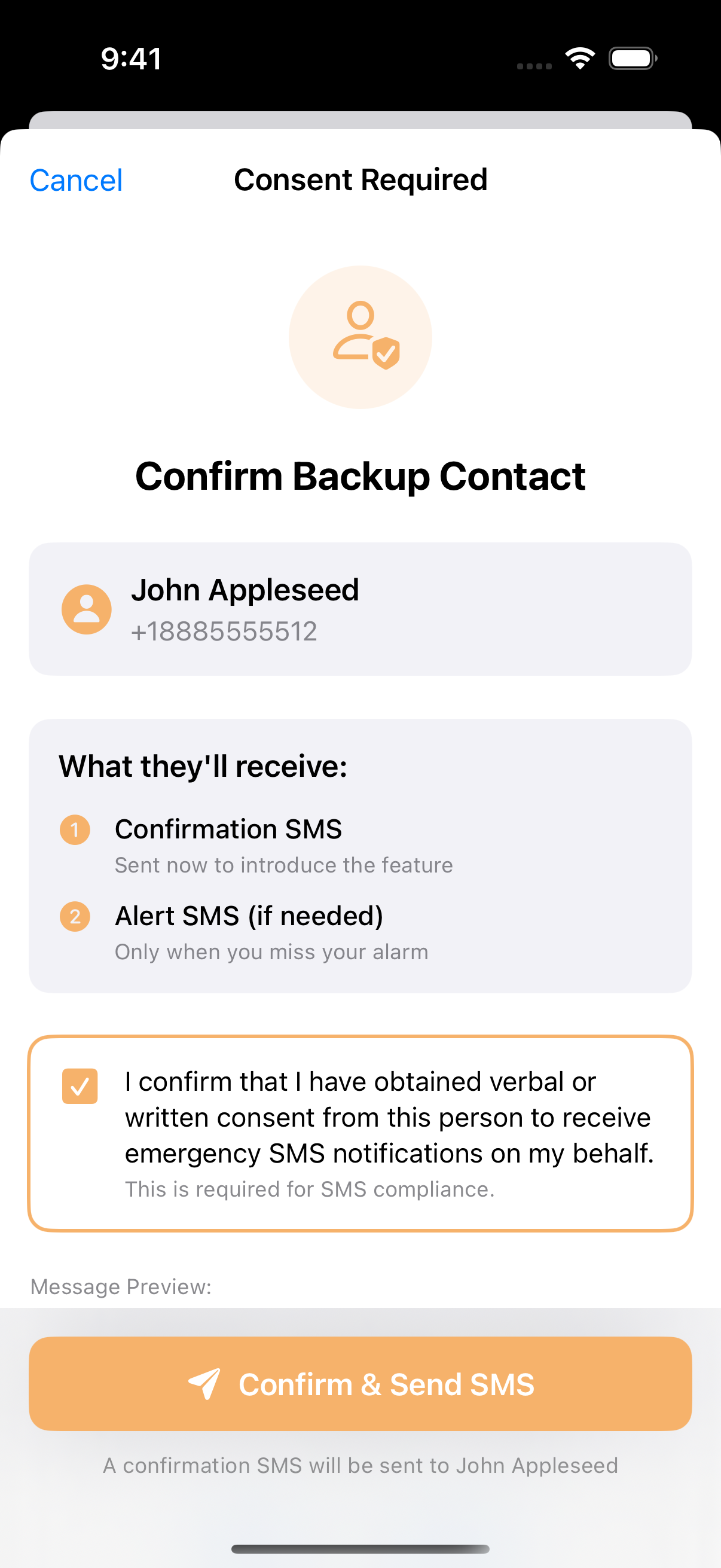
- The user has checked the box themselves.
- Only then does the Confirm & Send SMS button become active.
- This is the only path in the app that sends the confirmation text.
- Checkbox text: “I confirm that I have obtained verbal or written consent from this person to receive emergency SMS notifications on my behalf.”
The user has confirmed they have the contact’s permission.
5. Message preview with the required disclosures
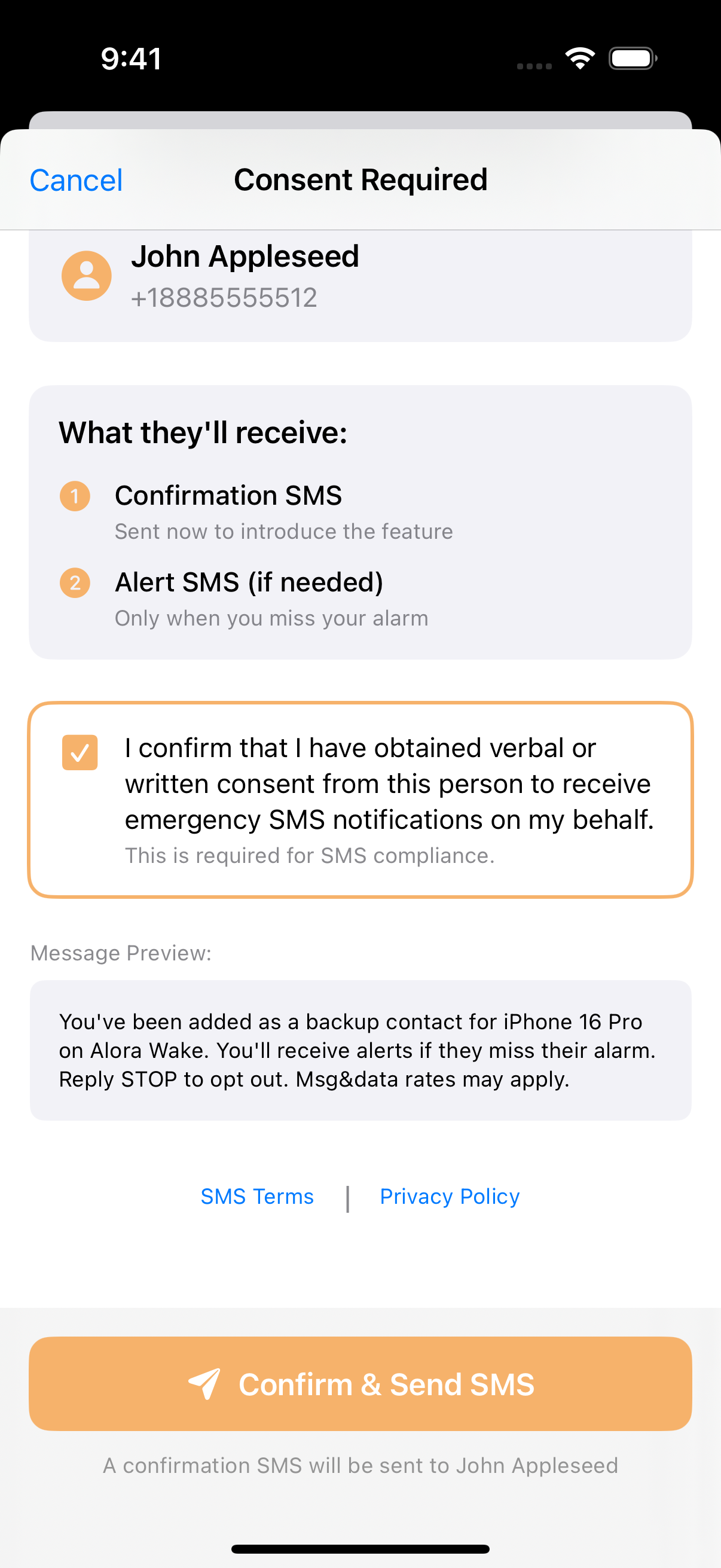
- The exact text is shown before anything is sent.
- Brand identification: “on Alora Wake”.
- Opt-out instructions: “Reply STOP to opt out”.
- Rate disclosure: “Msg&data rates may apply”.
Direct links to the screenshots
If the images above don’t load, each one opens on its own:
The consent flow at a glance
- The user turns on Notify My Backup. It is off by default.
- The user picks a contact from iOS Contacts. The contact’s name and number are shown.
- The consent screen appears with the confirm button inactive.
- The user checks the required consent checkbox. The button becomes active.
- The user taps Confirm & Send SMS. The Backup Contact receives the confirmation text with STOP instructions.
- If the Backup Contact replies STOP, no further texts are sent. If they don’t, they receive alerts only when an alarm goes unanswered.
Carrier compliance checklist
| Requirement | Evidence |
|---|---|
| Clear call to action | A required checkbox, with the confirm button inactive until it is checked (screenshots 3 and 4). |
| Message preview shown | The exact text is displayed on the consent screen before sending (screenshot 5). |
| Brand identification | The confirmation text names Alora Wake. |
| STOP opt-out supported | Included in every text, and handled automatically by Twilio. |
| Rate disclosure | “Msg&data rates may apply” in the confirmation text. |
| Public terms page | This page, at alorawake.com/sms-terms. |
| Non-recurring messages | Every text is triggered by an event. Nothing is scheduled. |
| Privacy Policy linked | Linked from the consent screen and at alorawake.com/privacy. The policy states a Backup Contact’s number is used solely to send these texts and is not shared with any other service. |
Notes for reviewers
- The required checkbox means the app user confirms consent before any text is sent.
- The confirm button is inactive by default and only becomes active after the box is checked.
- Backup Contacts can decline immediately by replying STOP to the confirmation text.
- Sample messages use [Name] and [Time] placeholders. No personal information appears on this page.
- The use case is non-marketing, emergency-only, and event-triggered.
- Alora Wake does not use keyword or web-form opt-in. Consent is collected in the app, as shown above.
- All screenshots are from the production iOS app.
Originating number and customer care
Texts are sent from a Twilio-provisioned United States 10DLC phone number. It appears as a standard 10-digit US number.
| Contact method | Details |
|---|---|
| Email support | support@alorawake.com |
| HELP keyword | Reply HELP to any text for assistance |
| STOP keyword | Reply STOP to opt out of all texts |
| START keyword | Reply START to receive alerts again |
| Website | https://alorawake.com |
Related policies
Contact
Questions about these texts: support@alorawake.com, or reply HELP to any text.